Animated Webcam Frame & Lower Thirds for OBS & Streamlabs
Frame your webcam and rotate lower thirds in OBS or Streamlabs. Customize the overlay with JSON settings or the included OBS Lua configurator.
- OBS Studio
- Streamlabs

From discovery to your next broadcast
Plan your setup
Check compatibility
Listed platforms: OBS Studio, Streamlabs. Confirm the required versions and dependencies before installing.
Preview before going live
Use a separate test scene or project. Check readability, timing and performance with your own layout and recording settings.
Make it your own
Follow the setup instructions below, check the creator’s license and save a working configuration before changing your broadcast.
A closer look
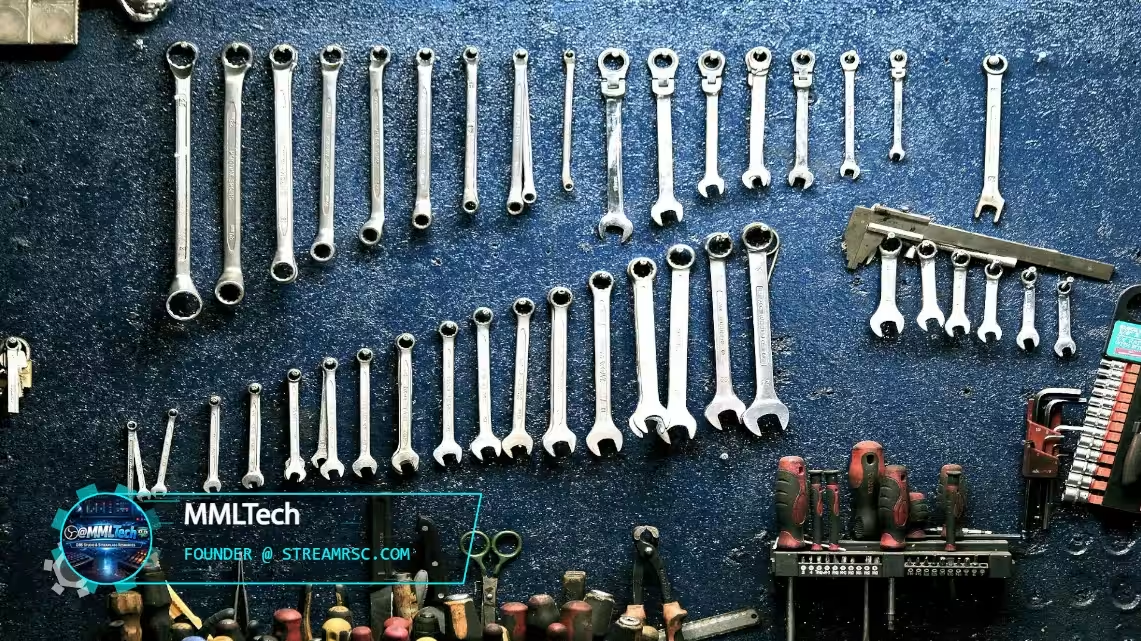
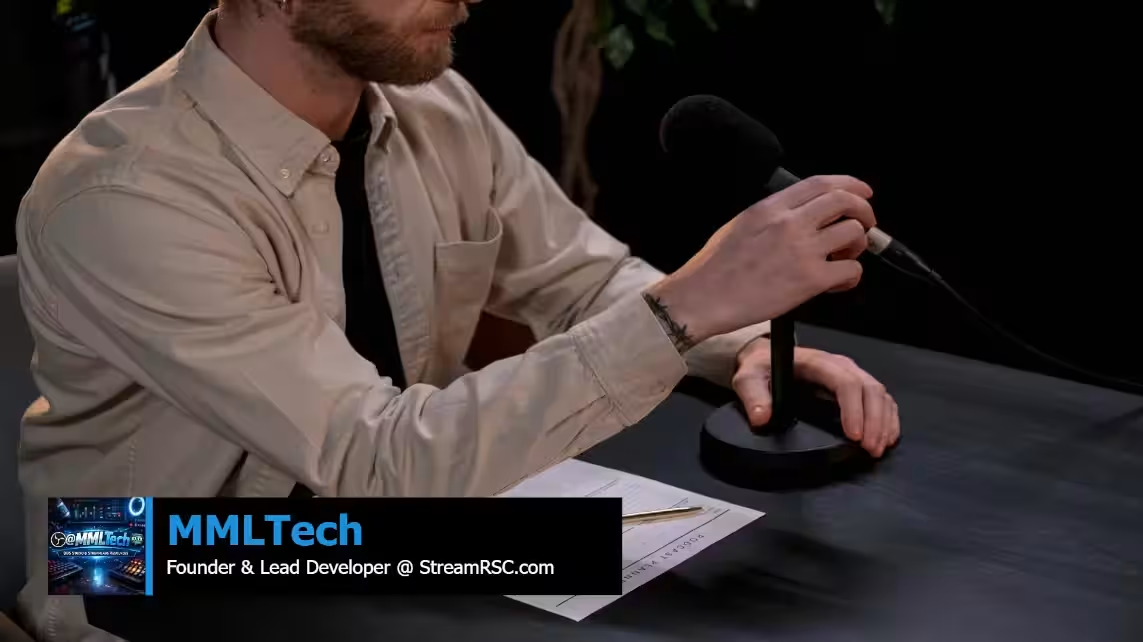
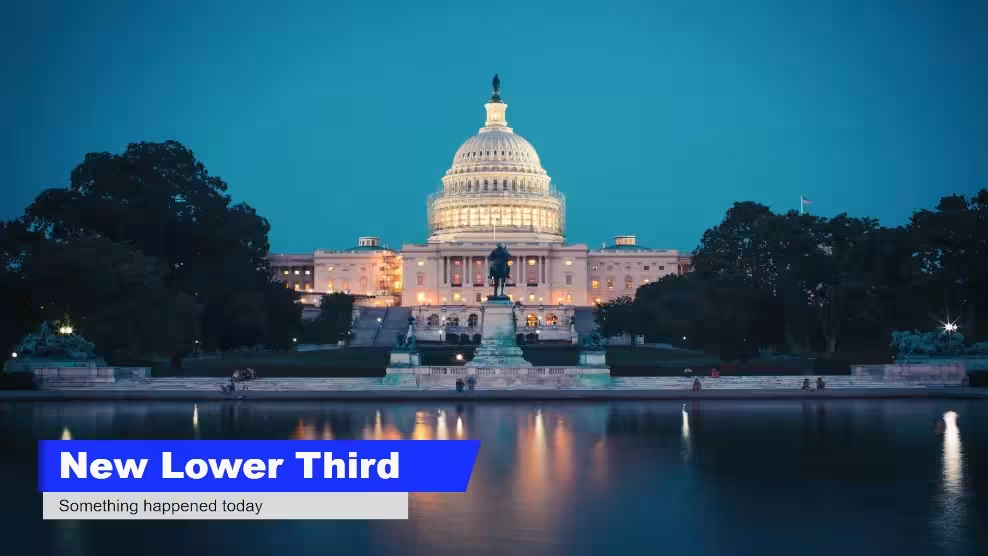
A matching webcam frame and lower thirds set for a cohesive stream look. The frame animates around your camera while a carousel of lower thirds rotates your messages, all styled from one configuration.
At a glance
- Resource type: Overlay.
- Listed platforms: OBS Studio, Streamlabs Desktop.
- Source: Ko-fi product page. Check current requirements and license terms there.
Features
- Animated webcam frame.
- Lower thirds carousel that rotates your messages.
- Styling through a JSON file or the included OBS Lua configurator.
Get started
Download the files and keep them together in a folder you can edit, such as Documents (Windows can block saving inside Program Files). In OBS Studio add a Browser Source, tick Local file and choose the HTML file; in Streamlabs Desktop, XSplit or Meld Studio add a browser or web page source pointing to the same file. Set the size to your canvas (usually 1920x1080), adjust the text, colors and timer in the configuration file, then refresh the source to apply your changes.
Files and license
Available from MML Tech on Ko-fi. Use the button on this page for the current price, the download and the license terms for personal and commercial streams.