Neon Clock & Countdown Shaders for OBS Shaderfilter
Add a neon seven-segment clock or countdown to an OBS source with HLSL shaders, color changes and flash alerts. Requires the obs-shaderfilter plugin.
- OBS Studio

From discovery to your next broadcast
Plan your setup
Check compatibility
Listed platforms: OBS Studio. Confirm the required versions and dependencies before installing.
Preview before going live
Use a separate test scene or project. Check readability, timing and performance with your own layout and recording settings.
Make it your own
Follow the setup instructions below, check the creator’s license and save a working configuration before changing your broadcast.
A closer look
Turn any OBS source into a glowing neon clock or countdown with a pair of HLSL shaders. Seven-segment digits change color as time runs down and flash to grab attention, all rendered on the GPU with no browser source.
At a glance
- Resource type: Shader.
- Listed platforms: OBS Studio.
- Source: Ko-fi product page. Check current requirements and license terms there.
Features
- Neon seven-segment clock.
- Countdown timer with color changes.
- Flash alerts as the countdown ends.
- Runs as a shader filter on any source.
Get started
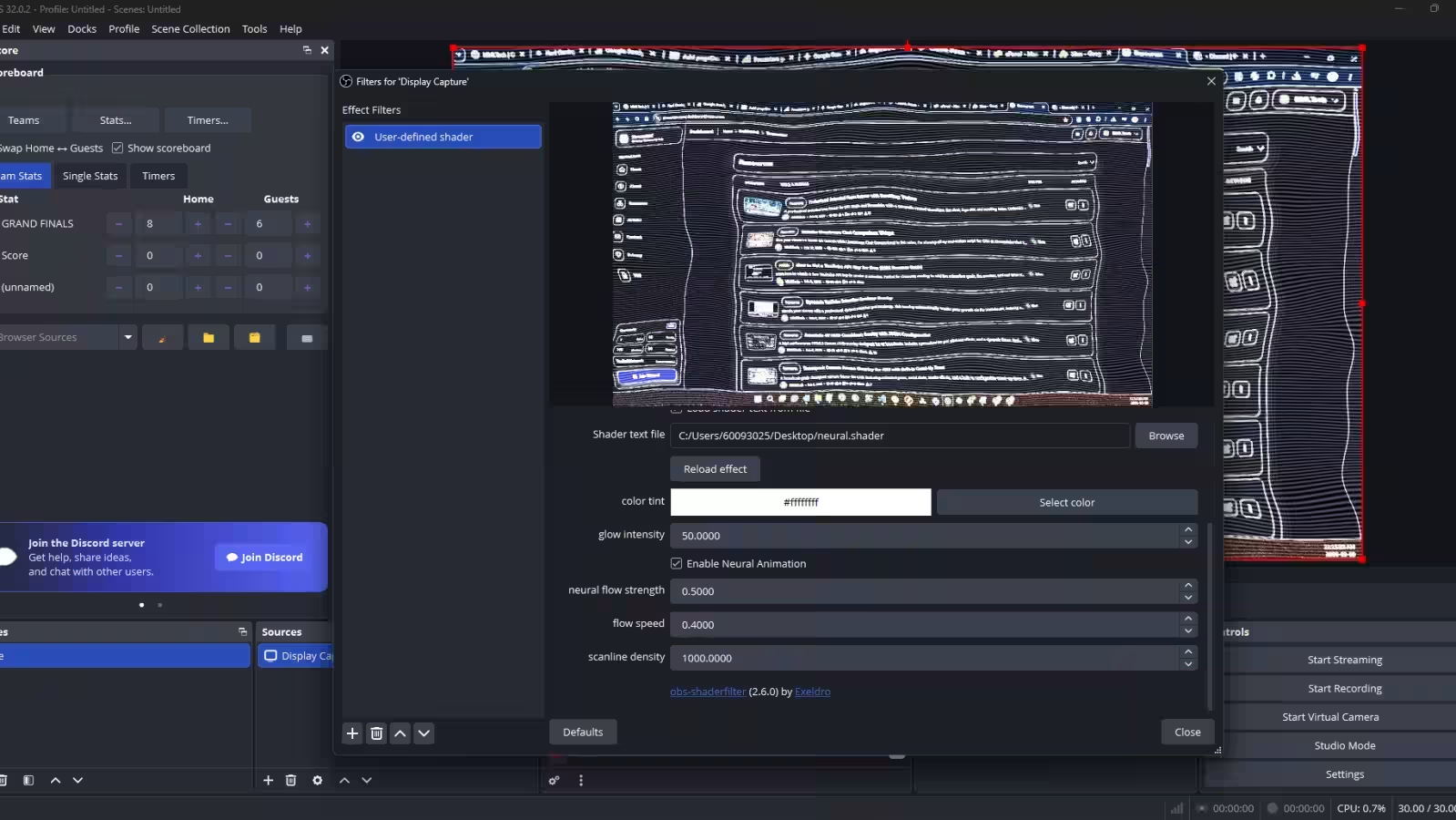
Install the obs-shaderfilter plugin, then add a User-defined shader filter to the source you want to style. Tick "Load shader text file", untick "Use Effect File (.effect)" (otherwise the time variables do not update and the animation freezes), load the shader file and adjust its parameters. Preview it at your normal stream resolution.
Files and license
Available from MML Tech on Ko-fi. Use the button on this page for the current price, the download and the license terms for personal and commercial streams.